Crystal Water Monitor lets you generate a public share, a live, read-only status page anyone can view by scanning a QR code or opening a link. No app to download, no login required.
This is useful for shared or rented properties (Airbnb, HOAs, apartment complexes, gyms) where guests or residents want a quick answer to "how's the water right now?" without contacting you directly.
What Is a Public Share?
A public share is a simple web page that displays near real-time status for a single body of water. It's built to be understood at a glance by someone with no context — they don't need a Crystal account or the app.
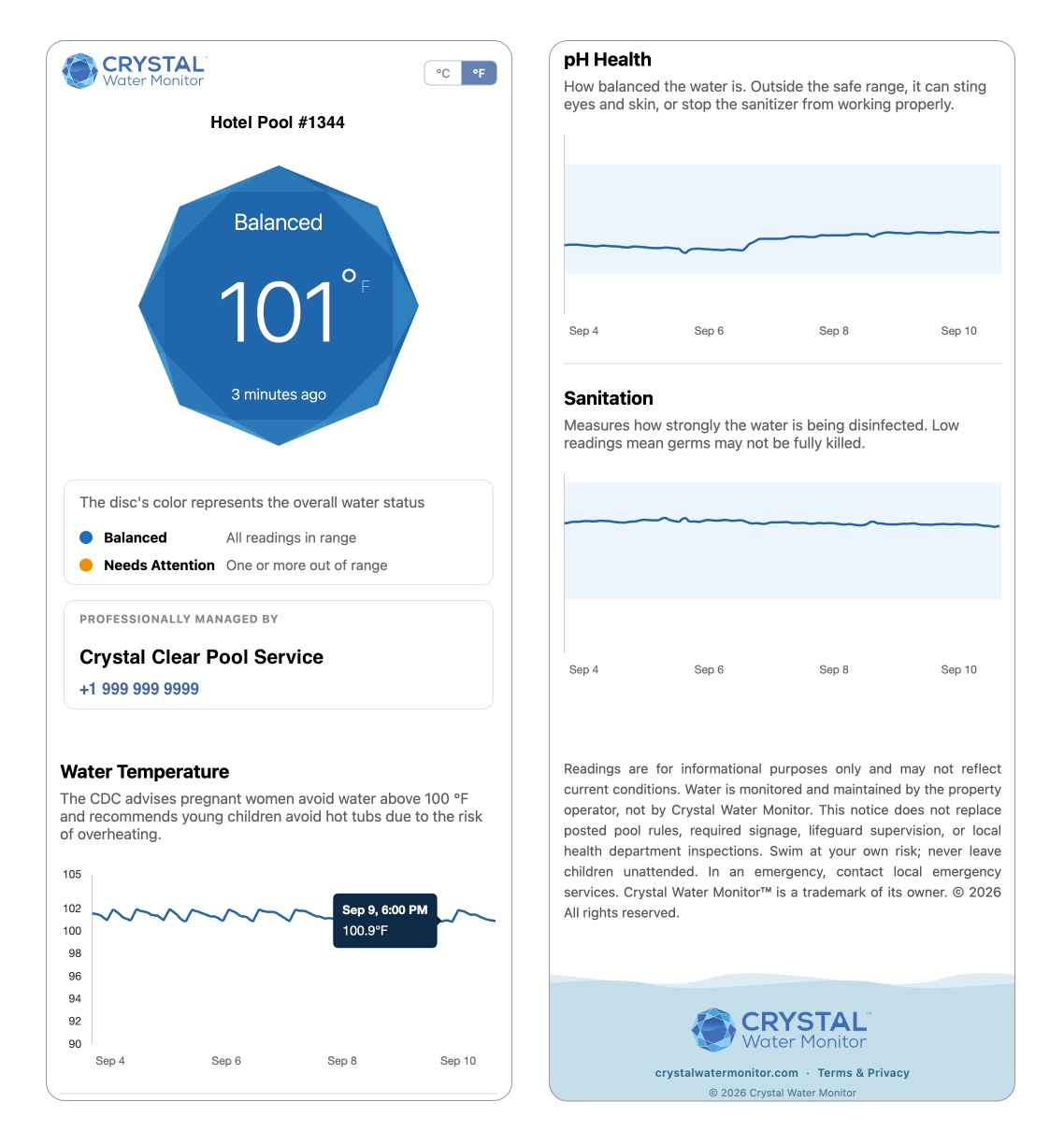
What's on the status page?
| Section | Description |
| Title | A custom name you set for the pool or spa (e.g. "Rooftop Spa,") |
| Status disc | A large color-coded indicator — blue for "Balanced," orange for "Not Balanced" — with the current temperature and how recently it was measured |
| Managed by | If you are a Crystal Pro and manage the pool, or you have your pool managed by a Crystal pro, your public share will show the Pro's business name and phone number |
| Trend graphs | Recent history for tracked chemistry values (Water Temperature, pH, Sanitizer), shown against a target range |
The page updates automatically as new readings come in, so the same link or QR code always reflects current conditions. You never need to regenerate it after a reading changes.
Creating a Public Share
- Open the Crystal Water Monitor app and select the pool or spa you want to share.
- Click the gear on the top right to open the settings.
- Scroll down to the Shares section.
- Tap Create Public Share.
- Give the share a title — this is what viewers will see at the top of the page.
- Tap Create. Your share is now live at a unique URL.
Once created, you can:
- View Status Website — open the live page yourself to confirm it looks right
- Share Status URL — send the link directly (text, email, etc.)
- Print a physical sign with the QR code (see below) to place near the entrance to the pool or by the spa
You can turn off or delete a public share at any time from the same screen. Once removed, the link and QR code stop working.
Printing a Scan for Status Page
If you want people to find the share in person — poolside, at a front desk, near a spa — you can generate a **Scan for Status page**: a printable PDF with a QR code that opens your public share when scanned.
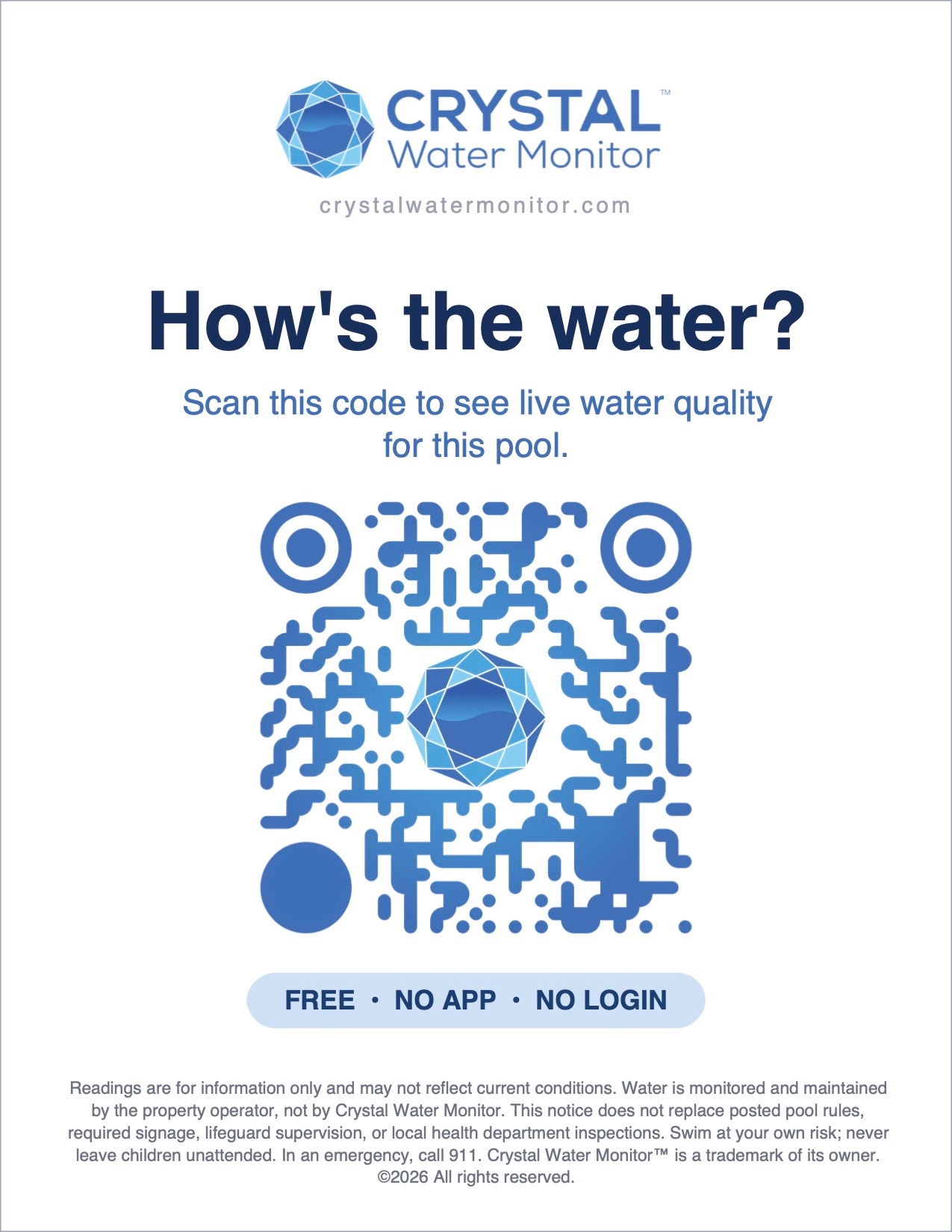
To generate a Scan for Status page:
- From your public share screen, tap Download/Print PDF.
- Choose a print size: 4×6, 5×7, or 8.5×11.
- Preview the page, then download or send it directly to a printer.
Displaying Your Printed Scan for Status Page
Once printed, most people mount their Scan for Status page in a sign holder near the pool or spa entrance, on a table, or at a front desk. Here area a few options depending on your space:
- Tabletop Sign Holder (4×6) — Buy now
- Tabletop Sign Holder (5x7) — Buy now
- Tabletop Sign Holder (8.5x11) — Buy now
- Wall-Mounted Frame (5×7) — Buy now
- Wall-Mounted Frame (8.5×11) — Buy now
- Weatherproof Outdoor Stand (8.5×11) — Buy now
FAQ
Does the public share show exact chemical readings?
It shows a simplified status (Balanced / Not Balanced) plus trend graphs. It's designed for quick, non-technical viewing rather than a full data export. Note that the status shown on public shares are delayed so that the pool caretaker has plenty of time to respond to issues before the status changes from Balanced/Blue.
Can I have more than one public share?
Yes — each pool or spa on your account can have its own independent share and printable page.
What happens if I disable monitoring on a device?
The public share will show the most recent reading along with its timestamp, so viewers can see the data may be out of date. After 24 hours the public share will show a disconnected/problem screen.